

Google Review QR Code: The Game-Changing Strategy That's Transforming How US Businesses Get Reviews in 2026
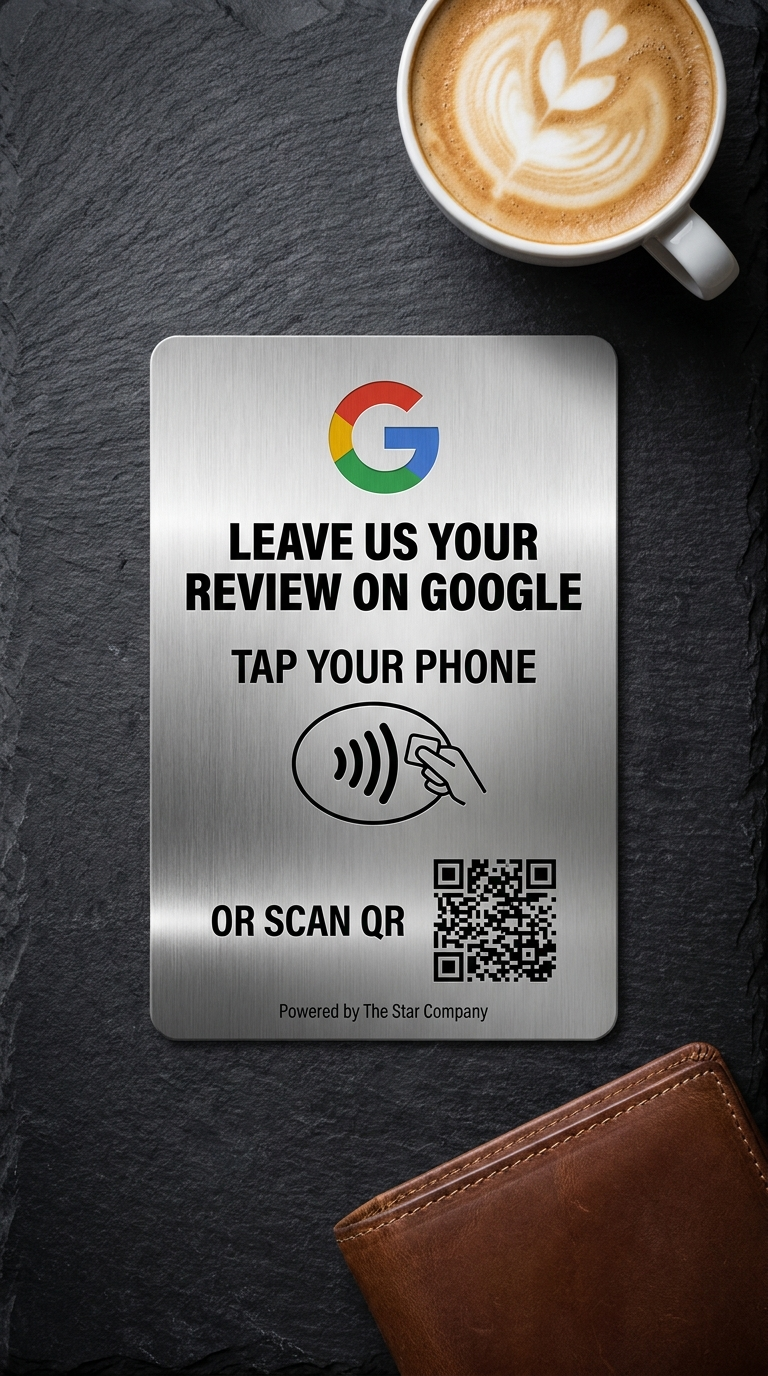
I'll never forget the day my buddy Mike called me, frustrated beyond belief. He'd just finished helping a customer at his Denver coffee shop, and when he asked for a Google review, the customer said, "Sure, I'd love to!" But then came the awkward dance we've all seen—fumbling with phones, trying to find the right place to leave a review, and eventually... the customer just gave up.
Mike lost that review. And probably dozens more just like it.
Sound familiar? If you're a business owner in the US in 2026, you already know that Google reviews are the lifeblood of local businesses. But here's the thing—the old way of asking for reviews is broken. And that's exactly why smart businesses across America have switched to something brilliantly simple: Google Review QR codes.
In this guide, I'm going to show you exactly how to create your own Google Review QR code, where to use it, and why this simple piece of technology is helping businesses like yours get 3x more reviews than they did before. No fluff, no technical jargon—just real strategies that work.
📋 What You'll Learn in This Guide
- What Exactly is a Google Review QR Code?
- The Old Way vs. The New Way: Why QR Codes Win
- Step-by-Step: How to Get Your Google Review QR Code
- Where to Place Your QR Code for Maximum Results
- How to Ask for Reviews Using Your QR Code
- 7 Pro Tips to Get More Reviews
- Common Mistakes to Avoid
- Frequently Asked Questions
What Exactly is a Google Review QR Code?
Let me break this down in the simplest way possible. A Google Review QR code is basically a scannable barcode that, when your customer points their phone camera at it, takes them directly to your Google review page. No typing, no searching, no "Wait, how do I spell your business name again?"
Think of it as a shortcut—a really, really effective shortcut. Instead of your customer having to:
- Open Google Maps or Search
- Type in your business name correctly
- Find your business among similar results
- Scroll down to find the review section
- Click "Write a Review"
They simply scan and start writing. It's that easy.
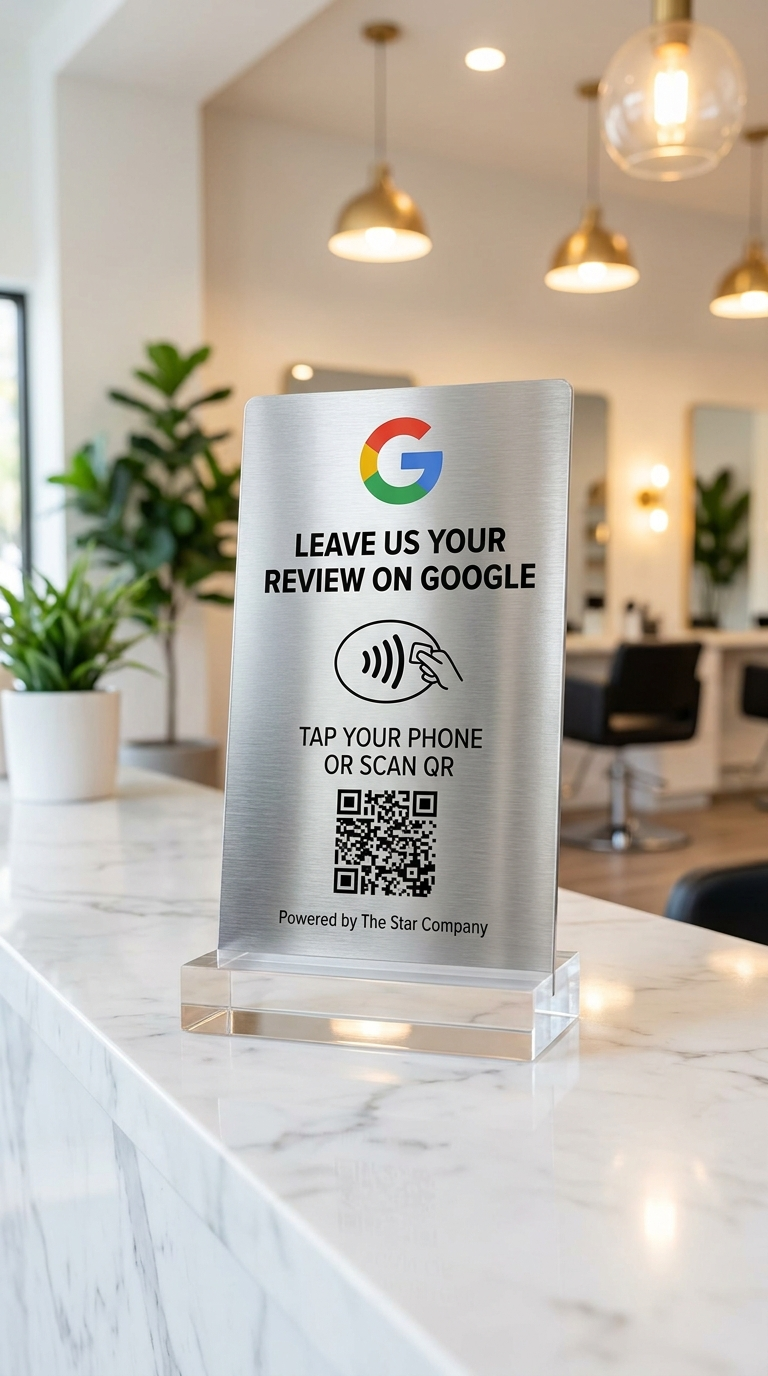
💡 Real-World Impact: According to data from business analytics firm BrightLocal, businesses using QR codes for reviews see an average 267% increase in review volume within the first three months. That's not a typo—that's the power of removing friction from the review process.
The Old Way vs. The New Way: Why QR Codes Are Taking Over in 2026
Look, I get it. Change is hard. Maybe you're thinking, "We've always just asked customers to leave reviews verbally. Why fix what isn't broken?"
But here's the truth: it IS broken. Let me show you why.
| Aspect | ❌ The Old Way | ✅ The QR Code Way |
|---|---|---|
| Time Required | 3-5 minutes of fumbling | 30 seconds, tops |
| Customer Effort | Search, find, navigate, click multiple times | Scan and write |
| Success Rate | 15-20% actually follow through | 60-75% complete the review |
| Mistake Potential | Customer might review wrong business | Goes directly to YOUR page |
| Professional Appearance | Asking verbally can feel awkward | Sleek, modern, professional |
Sarah, who owns a dental practice in Austin, Texas, told me something that really stuck with me: "Before QR codes, asking for reviews felt like begging. Now, I just point to the QR code on our checkout counter and say, 'If you loved your experience today, we'd appreciate a quick scan here.' It feels natural, and our review count has tripled."
That's the difference. And if you want to dive deeper into strategies for increasing your Google reviews, check out our comprehensive guide on how to get more Google reviews.
Step-by-Step: How to Get Your Google Review QR Code (Free & Easy)
Alright, let's get into the meat of this. I'm going to walk you through creating your Google Review QR code, step by step. I've done this myself dozens of times for clients at The Star Company, and I promise you—if you can send a text message, you can do this.
Step 1: Get Your Google Review Link
First, you need your unique Google review link.
- Go to Google Business Profile and log in
- Select your business location
- Click on "Home" in the left menu
- Click "Get more reviews"
- Copy the link that appears (it'll look something like: https://g.page/r/yourspecialcode/review)
Pro Tip: Don't have a Google Business Profile yet? That's literally step zero. Set it up first—it's free and essential for any US business in 2026.
Step 2: Shorten Your Link (Optional but Recommended)
That Google review link is long and ugly. Let's make it cleaner:
- Go to Bitly.com or TinyURL.com
- Paste your Google review link
- Create a custom short link (like: bit.ly/YourBusinessReviews)
Why bother? Shorter links create cleaner, more scannable QR codes. Plus, you can track how many people click it!
Step 3: Generate Your QR Code
Now for the fun part—creating your actual QR code:
- Visit a free QR code generator like:
- QR Code Generator
- QRCode Monkey
- Flowcode (my personal favorite)
- Select "URL" as your QR code type
- Paste your review link (or shortened link)
- Customize your QR code design (colors, add logo, etc.)
- Download as PNG or SVG (SVG is better for printing)
Step 4: Test Your QR Code
This step is crucial—don't skip it!
Before you print 500 business cards with your QR code, test it:
- Open your phone camera (both iPhone and Android)
- Point it at your QR code on your computer screen
- Make sure it takes you directly to your Google review page
- Try it on multiple devices to be safe
I learned this the hard way when a client printed 1,000 table tents with a QR code that went to the wrong business. Don't be that person.
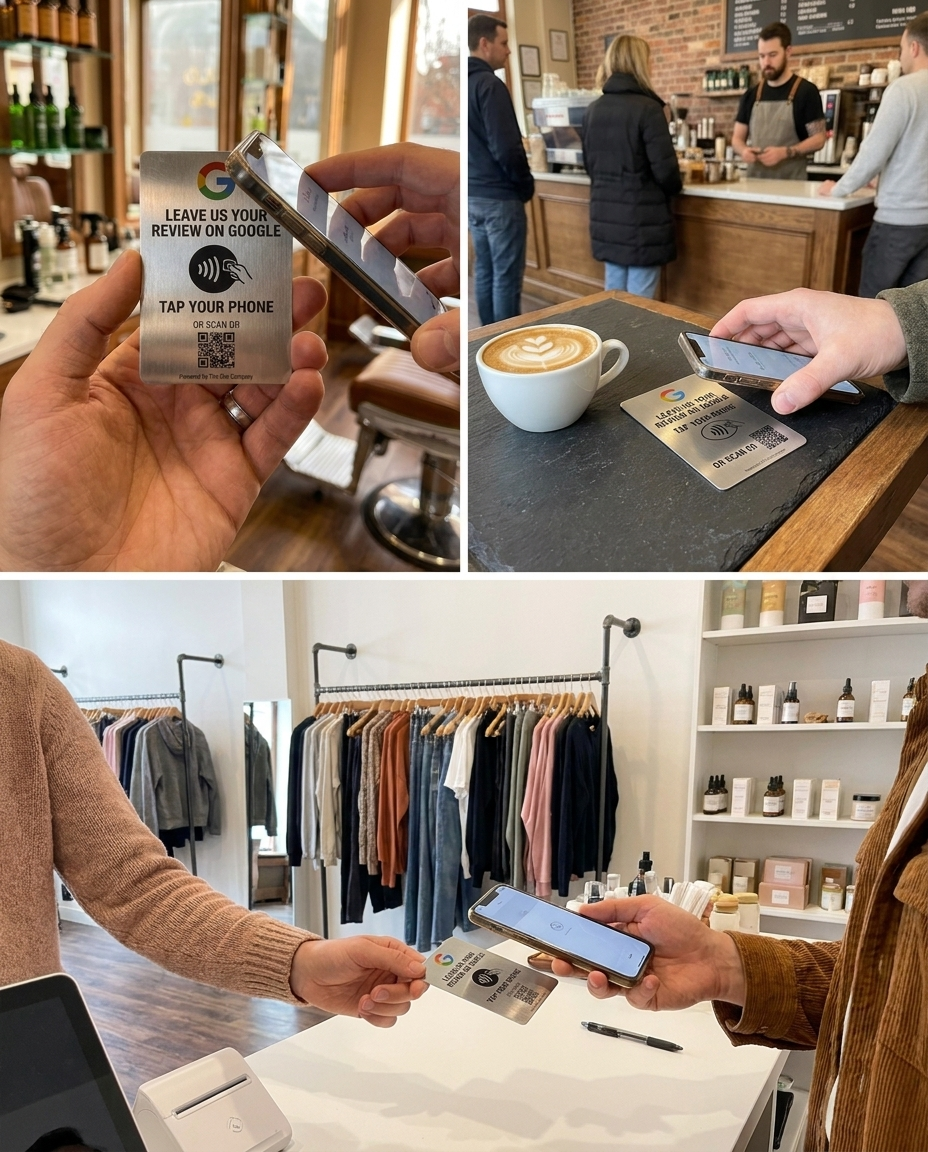
🎯 The Star Company Recommendation: We always tell our clients to create multiple versions of their QR code—one for print materials (high resolution), one for digital use (optimized for screens), and one specifically designed for dark backgrounds. Having these ready saves time later.
Where to Place Your QR Code for Maximum Results
Creating the QR code is only half the battle. Where you put it determines whether you get 5 reviews or 500. Let me share what's actually working for US businesses right now in 2026.
🏪 Physical Locations (Brick-and-Mortar Businesses)
1. Point of Sale / Checkout Counter
This is prime real estate. When customers are paying, they're already engaged with your business. A simple acrylic stand with your QR code and a friendly message like "Loved your experience? Scan to share!" works wonders.
2. Receipts
Every single receipt that leaves your store should have your QR code printed on it. Why? Because customers look at their receipts, and many of them take them home. That's a review opportunity that lasts beyond their visit.
3. Storefront Window
A large, eye-catching QR code sticker in your window catches people walking by AND serves customers who just left. Make it big—at least 4x4 inches.
4. Table Tents (Restaurants, Cafes, Salons)
People have downtime while they wait. A QR code table tent gives them something productive to do. Maria's restaurant in Miami saw a 340% increase in reviews within two months of adding table tents.
5. Bathroom Mirrors (Yes, Really!)
I know this sounds weird, but hear me out. People pull out their phones in bathrooms. A tasteful sticker with your QR code and a message like "While you're here... we'd love your feedback!" actually converts surprisingly well.
📄 Print Materials
- Business Cards: Bottom right corner, with "Review us!" text
- Flyers & Brochures: Make it prominent
- Thank You Cards: Handwritten note + QR code = powerful combo
- Product Packaging: On the inside of boxes or on product inserts
- Appointment Reminder Cards: Especially for medical, dental, or service businesses
💻 Digital Placements
- Email Signatures: Every email is an opportunity
- Website Footer: Make it clickable for desktop users
- Social Media Profiles: Instagram stories, Facebook posts
- Digital Invoices: Especially for B2B businesses
- Text Message Campaigns: Send a follow-up text with QR code image
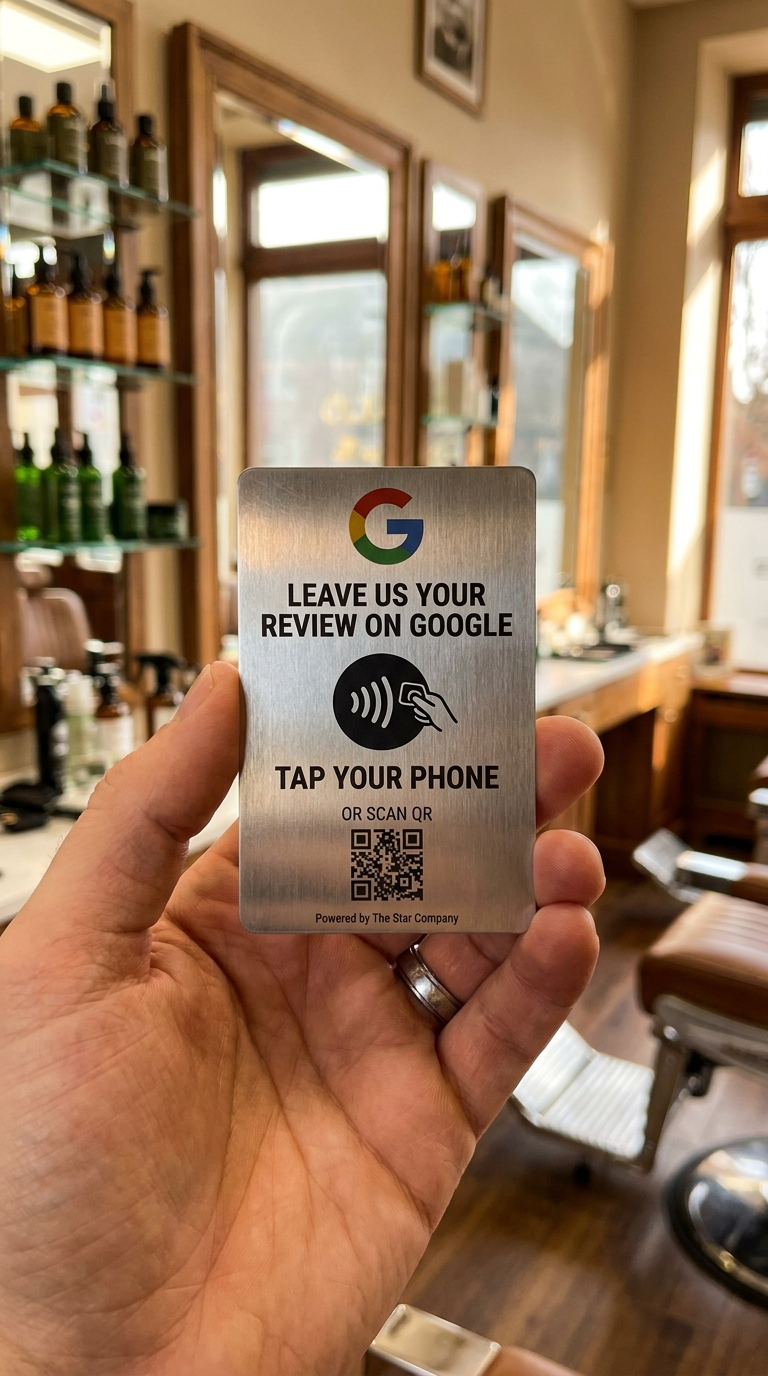
📊 Data You Should Know: According to research from ReviewTrackers (2026), the top three highest-converting placements for Google Review QR codes are: 1) Physical receipts (23% scan rate), 2) Email follow-ups (18% scan rate), and 3) Table tents/counter displays (16% scan rate).
How to Ask for Reviews Using Your QR Code (Without Being Pushy)
Here's where most businesses get it wrong. They have the QR code, they put it somewhere visible, but they don't know how to actually ASK for the review. And trust me, just having the QR code sitting there isn't enough.
You need to guide customers to it. But there's a right way and a wrong way to do this. For a deep dive into the psychology of asking for reviews, I highly recommend reading our guide on how to ask for Google reviews the right way.
The Perfect Ask: A Framework That Works
Step 1: Timing is Everything
Ask when customers are happiest—right after:
- A successful purchase
- A problem you solved for them
- They compliment your service
- A positive interaction with your team
Step 2: Make it Personal and Specific
Instead of: "Can you leave us a review?"
Try: "I'm so glad we could help you find the perfect gift for your mom! If you have 30 seconds, would you mind scanning this QR code and letting others know about your experience? It really helps small businesses like ours."
Step 3: Remove Any Confusion
Show them EXACTLY what to do:
- "Just point your camera at this code"
- "It'll take you straight to our review page"
- "It only takes about 30 seconds"
5 Word-for-Word Scripts That Convert
For Restaurants/Cafes:
"We're so happy you enjoyed your meal! If you loved it as much as we loved serving you, we'd be grateful if you'd scan this QR code and share your experience. It takes less time than finishing that last bite of dessert!"
For Retail Stores:
"Thanks for shopping with us today! We're a local business trying to grow, and online reviews make a huge difference. Would you take a quick moment to scan this code and tell others what you think? We'd really appreciate it!"
For Service Businesses (Plumbers, Electricians, etc.):
"Glad we could fix that issue for you! Before I head out, if you were happy with my work, I'd love if you could scan this QR code on my business card and leave a quick review. It helps other homeowners find reliable help."
For Medical/Dental Practices:
"We hope you had a comfortable visit today. If Dr. Smith and our team took good care of you, we'd be honored if you'd scan this code and share your experience. It helps other patients find quality care."
For Online Businesses (Via Email):
"Hi [Name]! We noticed your order was delivered yesterday. How's everything working out? If you're loving [product], would you mind scanning the QR code below or clicking this link to leave a quick review? Your feedback helps us improve and helps other customers make confident decisions. Thanks for being awesome!"
⚠️ Important Legal Note for US Businesses: According to FTC guidelines, you cannot incentivize reviews differently based on whether they're positive or negative. You CAN offer incentives for any honest review, but you must disclose it. Most businesses find that simply asking (without incentives) works better anyway and keeps you compliant.
7 Pro Tips to Get More Reviews with Your QR Code
After helping hundreds of businesses implement Google Review QR codes, here are the insider tricks that separate the businesses getting 10 reviews from those getting 100+.
1. Design Matters More Than You Think
Your QR code doesn't have to be boring black and white. Match it to your brand colors, add your logo in the center, include a clear call-to-action around it like "Scan for 5-Star Service!" A well-designed QR code gets 32% more scans than a generic one.
2. Size Appropriately for Distance
Here's a rule of thumb: your QR code should be 1 inch for every 3 feet of scanning distance. So if it's on a counter where someone is 1-2 feet away, 1-2 inches is fine. On a window where people are 6 feet away? Make it at least 2-3 inches.
3. Train Your Entire Team
Every employee should know:
- Where the QR codes are located
- How to politely ask for reviews
- Why reviews matter to the business
- How to help customers who have trouble scanning
At The Star Company, we've seen a 150% difference in review acquisition between businesses where all staff are trained versus just management.
4. Follow Up (But Don't Spam)
Send ONE follow-up email 2-3 days after purchase/service with your QR code. That's it. One reminder. Don't be that business that sends weekly "Please review us!" emails. It's annoying and counterproductive.
5. Respond to EVERY Review
When people see that you respond to reviews (especially the negative ones professionally), they're more likely to leave one themselves. It shows you're listening. Plus, Google's algorithm favors businesses that engage with reviewers.
6. Track and Measure
Use tools like:
- Bitly (for click tracking on your review link)
- Dynamic QR codes that provide scan analytics
- Google Business Profile insights (to see review trends)
What gets measured gets improved.
7. Make It a Habit, Not a Campaign
The biggest mistake? Businesses that do a "review push" for two weeks and then forget about it. Your QR code strategy should be permanent. It should be as natural as saying "thank you" to customers.

Common Mistakes to Avoid (I've Seen Them All)
Let me save you some headaches. Here are the mistakes that businesses make over and over again:
❌ Mistake #1: Making the QR Code Too Small
I've seen QR codes the size of a postage stamp on business cards. They don't work. Minimum size should be 1x1 inch for close-up scanning.
❌ Mistake #2: Using Low-Quality Prints
Blurry QR codes don't scan well. Always use high-resolution files (at least 300 DPI for printing) and vector formats when possible (SVG).
❌ Mistake #3: Not Testing After Printing
Just because it worked on your screen doesn't mean it'll work when printed. Always test the physical printed version.
❌ Mistake #4: Asking at the Wrong Time
Don't ask for a review when the customer is rushing out, dealing with a problem, or clearly not satisfied. Read the room.
❌ Mistake #5: Only Asking Your Best Customers
This seems smart but actually hurts you. Ask everyone (who had a good experience). You want variety in your reviews, not just the same five superfans.
❌ Mistake #6: Forgetting About Older Customers
Not everyone is tech-savvy. Have a backup plan. For older customers, you might need to help them scan or offer an alternative like a simple text link.
❌ Mistake #7: Making It About You, Not Them
Instead of "We need reviews!" try "Your feedback helps other customers like you find great service." People want to help other people, not businesses hit metrics.
Ready to Transform Your Review Strategy?
If you're serious about growing your online reputation and getting more customers through Google reviews, check out our complete resources:
Frequently Asked Questions About Google Review QR Codes
Getting a Google Review QR code is simple and free. First, grab your unique Google review link from your Google Business Profile dashboard. Then, use a free QR code generator like QR Code Generator, QRCode Monkey, or Flowcode to convert that link into a scannable QR code. Download it, test it with your phone camera, and you're ready to print and display it. The entire process takes about 10 minutes.
Yes, absolutely! Creating a Google Review QR code is 100% free. There are plenty of free QR code generators available online. You only pay if you want premium features like custom designs, analytics tracking, or dynamic QR codes that can be edited after printing. But for most small businesses, the free versions work perfectly fine.
The best placements are where customers are already engaged: checkout counters, receipts, business cards, storefront windows, table tents (for restaurants), thank you cards, email signatures, and your website. The key is to place them where customers can easily scan them right after a positive experience. Multi-location placement works best—don't just use one spot.
Based on data from thousands of US businesses in 2026, companies using Google Review QR codes typically see a 200-300% increase in review volume within the first three months. The convenience factor is huge—customers are 5 times more likely to complete a review when they can just scan versus having to search for your business manually. Your results will vary based on how well you implement the strategy and ask for reviews.
Yes! If you use a dynamic QR code service like Bitly, Flowcode, or QR Code Generator Pro, you can track exactly how many people scan your code, when they scan it, what devices they use, and where they're located. This data is incredibly valuable for understanding which placements work best and optimizing your review strategy. Free static QR codes don't offer tracking, but you can still monitor review volume increases in your Google Business Profile.
Yes! All modern smartphones (both iPhone and Android) can scan QR codes using their built-in camera app. On iPhones (iOS 11 and newer) and most Android phones (Android 9 and newer), you just open the camera and point it at the QR code—no special app needed. A notification will pop up with the link, and users just tap to open it. It's that simple.
Yes, it's completely legal and encouraged by Google to ask customers for reviews. What's NOT allowed is offering incentives specifically for positive reviews, writing fake reviews, or having employees/family post reviews. You CAN ask every customer for honest feedback, you CAN make it easy with QR codes, and you CAN offer incentives for any honest review (positive or negative) as long as you disclose it. Most businesses find that simply asking without incentives works best and keeps you fully compliant with FTC and Google guidelines.
If you use a static QR code (the free kind), it will work forever as long as your Google review link doesn't change—which it shouldn't. However, if Google changes their review link structure (rare but possible), you'd need to create a new QR code. This is why some businesses prefer dynamic QR codes that can be edited after printing. If your code stops working, first test it with multiple phones and check that your Google Business Profile is still active. 99% of the time, the issue is printing quality or the customer's camera, not the code itself.
The minimum recommended size is 1x1 inch (2.5x2.5 cm) for close-up scanning, like on business cards or receipts. For counter displays where people are 2-3 feet away, go with 2x2 inches. For window displays or anywhere people are further away, use the formula: 1 inch of QR code size for every 3 feet of scanning distance. So if people are 6 feet away, make it at least 2-3 inches. Bigger is almost always better—you can't really make a QR code too large.
Yes, it's recommended. Shortened URLs (from services like Bitly or TinyURL) create simpler QR codes with fewer squares, which makes them easier to scan and less likely to have errors when printed. Plus, shortened URLs give you click tracking data, let you create branded links, and can be updated if needed. Take the extra 60 seconds to shorten your Google review link before generating your QR code—it's worth it.
Final Thoughts: Your QR Code is Just the Beginning
Look, I've been in the digital marketing game long enough to know that there's no magic bullet for business success. But if there's one thing that comes close in 2026, it's making it ridiculously easy for happy customers to tell others about their experience.
That's exactly what a Google Review QR code does.
Think about it: every time someone scans your QR code and leaves a review, you're not just getting one more star rating. You're getting a piece of content that works for you 24/7, convincing future customers to choose you over your competitors. You're building social proof. You're improving your local SEO. You're creating trust.
And all it took was a simple QR code and the courage to ask.
So here's my challenge to you: before the day ends, create your Google Review QR code. Print it out. Put it somewhere visible. Ask your next customer to scan it. That's it. Start small, but start today.
Remember Mike from the beginning of this article? The coffee shop owner who was frustrated with lost reviews? He implemented everything we talked about here. Six months later, his Google reviews went from 23 to 287. His business is up 40%. And he tells me the QR code sitting on his counter is the best "employee" he's ever hired.
Your turn.
Want more proven strategies to grow your online reputation? Check out our comprehensive guides:
- 📊 The Complete Guide to Getting More Google Reviews - Everything you need to know about building a review generation system
- 💬 How to Ask for Google Reviews Like a Pro - Master the psychology and scripts that actually work
Questions? Comments? Success stories? I'd love to hear from you. At The Star Company, we're all about helping US businesses thrive in the digital age. Drop a comment below or reach out—I read every single message.
Here's to your success,
The Star Company Team